
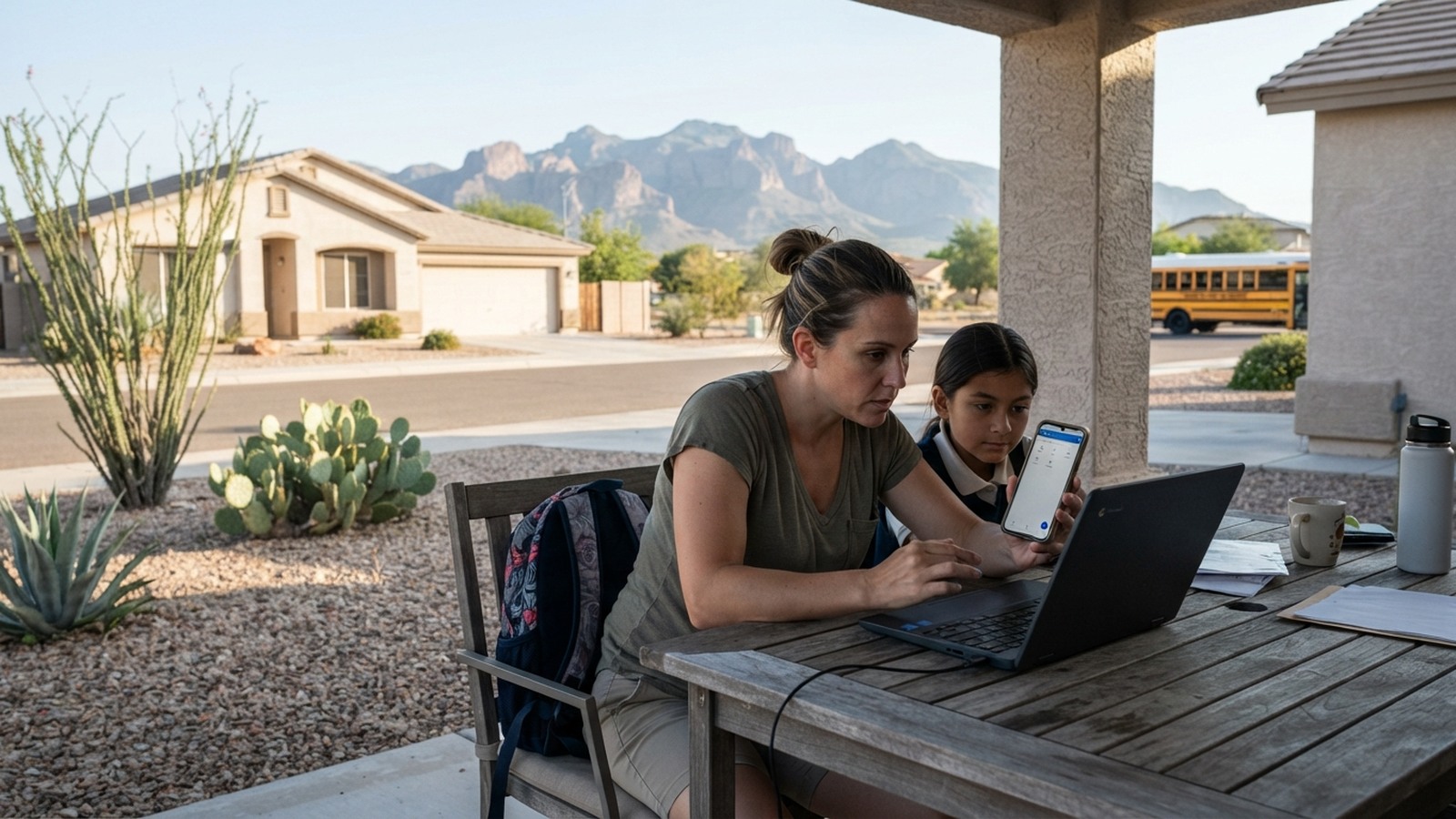
Stay Connected and in Control of Chromebooks with the Securly Home App
Stay Connected and in Control of Chromebooks with the Securly Home App.
As students use school-issued Chromebooks at home, parents and guardians have tools to help monitor and manage their online activity.
Through the Securly Home app, families have greater visibility and control over how their child uses their Chromebook outside of school.
Please note that school filtering and device-management settings established by MUSD remain in place.
Enabling parental controls provides additional options for managing access at home.
Parents can download the Securly Home app from the Apple App Store or Google Play Store.
Select the “Get Instant Access” option, which will send a code to the registered ParentVUE email to log in.
Once set up, the app allows you to view information about your child's online activity, including search history, websites and online activity, categories of websites accessed, and additional information about their child's device activity.